Resize an OCFS Filesystem
- Subham Dutta
- Jul 12, 2022
- 2 min read

The below blogs talks about steps to resize an OCFS2 filesystem on Linux. The procedure should first be tested in test before being performed against a production environment.
> Backup all data on the filesystem
Repartitioning a disk/device is a destructive process that may result in complete loss of volume data. Backup the contents of the volume to be resized before proceeding.
> OCFS2 filesystem resize can only be performed with the filesystem unmounted from all cluster nodes. Unmount the filesystem to be resized on all cluster nodes. Use the mounted.ocfs2 command to verify if any nodes still have the volume mounted

from both the nodes
ubuntu@ubuntu-node1:~$ sudo umount /test
ubuntu@ubuntu-node2:~$ sudo umount /test

> Next perform a file system health check from any one Node:

> Then resize the volume from OCI Console.
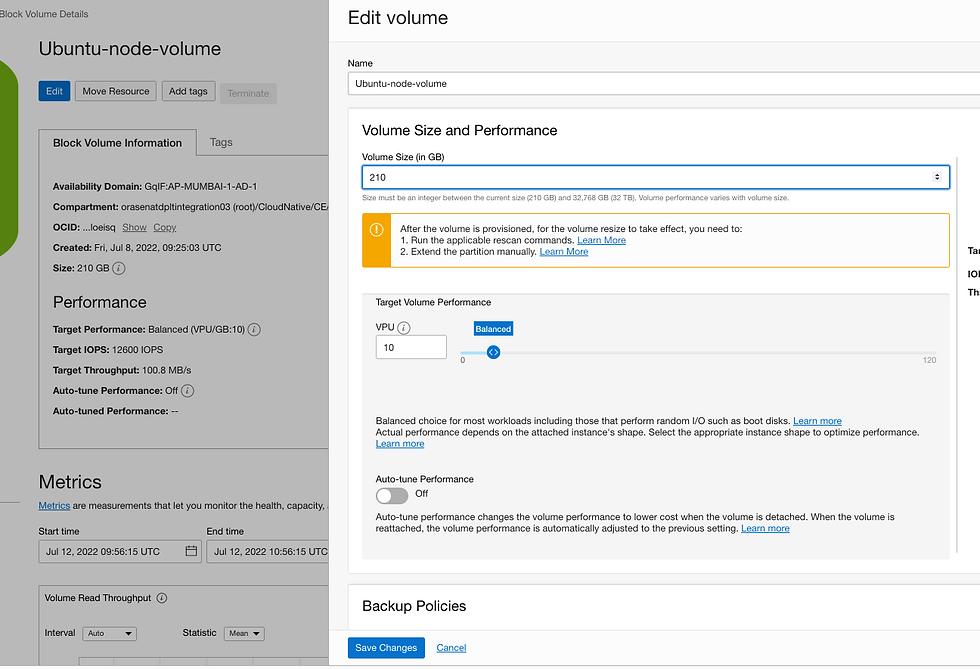
check after resize:
ubuntu@ubuntu-node2:~$ sudo cat /proc/partitions | grep sdb
8 16 209715200 sdb
> Then delete the partition and create new partition.
ubuntu@ubuntu-node2:~$ sudo fdisk /dev/sdb
Welcome to fdisk (util-linux 2.31.1).
Changes will remain in memory only, until you decide to write them.
Be careful before using the write command.
The old ocfs2 signature will be removed by a write command.
Device does not contain a recognized partition table.
Created a new DOS disklabel with disk identifier 0x98cec009.
Command (m for help): d
Selected partition 1
Partition 1 has been deleted.
Command (m for help): n
Partition type
p primary (0 primary, 0 extended, 4 free)
e extended (container for logical partitions)
Select (default p): p
Partition number (1-4, default 1): 1
First sector (2048-440401919, default 2048):
Last sector, +sectors or +size{K,M,G,T,P} (2048-440401919, default 440401919):
Created a new partition 1 of type 'Linux' and of size 210 GiB.
Command (m for help): p
Disk /dev/sdb: 210 GiB, 225485783040 bytes, 440401920 sectors
Units: sectors of 1 * 512 = 512 bytes
Sector size (logical/physical): 512 bytes / 4096 bytes
I/O size (minimum/optimal): 4096 bytes / 1048576 bytes
Disklabel type: dos
Disk identifier: 0x98cec009
Device Boot Start End Sectors Size Id Type
/dev/sdb1 2048 440401919 440399872 210G 83 Linux
Command (m for help): w
The partition table has been altered.
Calling ioctl() to re-read partition table.
Syncing disks.
> Then run partprobe command and check lsblk and df -h

> Then run the below command: tunefs to resize and mkfs.ocfs2

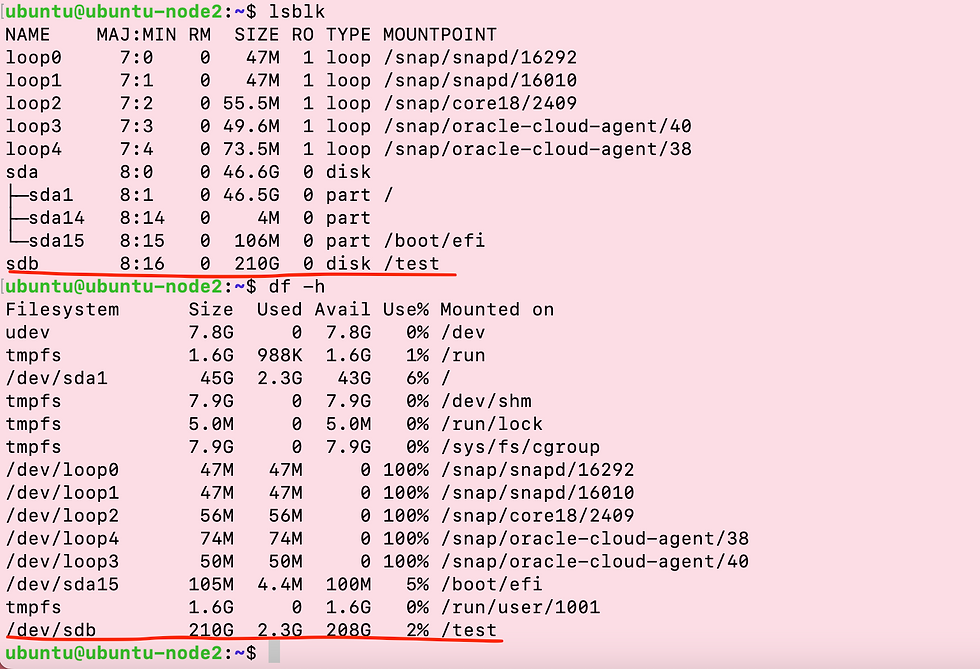
Finally check the df -h to see the resized volume and run mounted.ocfs2 to check whether both the nodes are showing as mounted.. [Need to run the mount -L command in Node 1 as well]

Check the resized volume on both the node..
Thank you!!


Comments